Home
Categories
Dictionary
Download
Project Details
Changes Log
What Links Here
How To
Syntax
Wiki usage
Tutorials
FAQ
License
Full text search
1 Full text search options
1.1 Full text search compression level
1.2 Removing accents
1.3 Use the Metaphone algorithm
1.4 Full text search results context
2 Using the Full text search
2.1 Cross-origin resource sharing
3 See also
1.1 Full text search compression level
1.2 Removing accents
1.3 Use the Metaphone algorithm
1.4 Full text search results context
2 Using the Full text search
2.1 Cross-origin resource sharing
3 See also
If the "fullTextSearch" property is set in the configuration file or the command-line, then the search box includes a full-text search in the articles content. Clicking on a link will navigate to a Search page which will present links for all the pages which contain the searched term.
The Full text search uses the elasticlunr Javascript library (or its associated Java conversion for the JavaHelp implementation) to implement the search.
There are several values for the compression level:
Note that for example, for this wiki:
For example here the accents will not be removed:
Metaphone is a phonetic algorithm for indexing words by their English pronunciation. It does a better job of matching words and names which sound similar.
For example here the metaphone algorithm will be used:
By default, the Full text search result page will show the context of each result (see Using the Full text search). It is possible to configure if the context of the results will be shown with the fullTextSearchResultContext configuration property, or in the command-line.
For example, here there will be a full text search with the Full text search results context:
The Full text search feature is available in the search box. Note that you will not see the context of the search if you open the wiki in the browser by double clicking on the
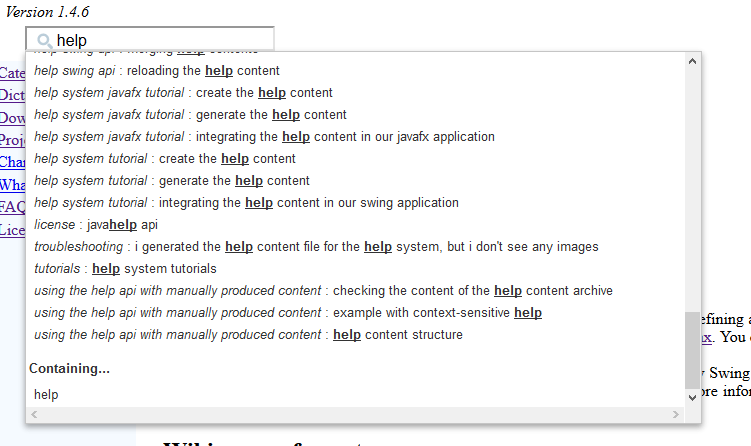
For example:
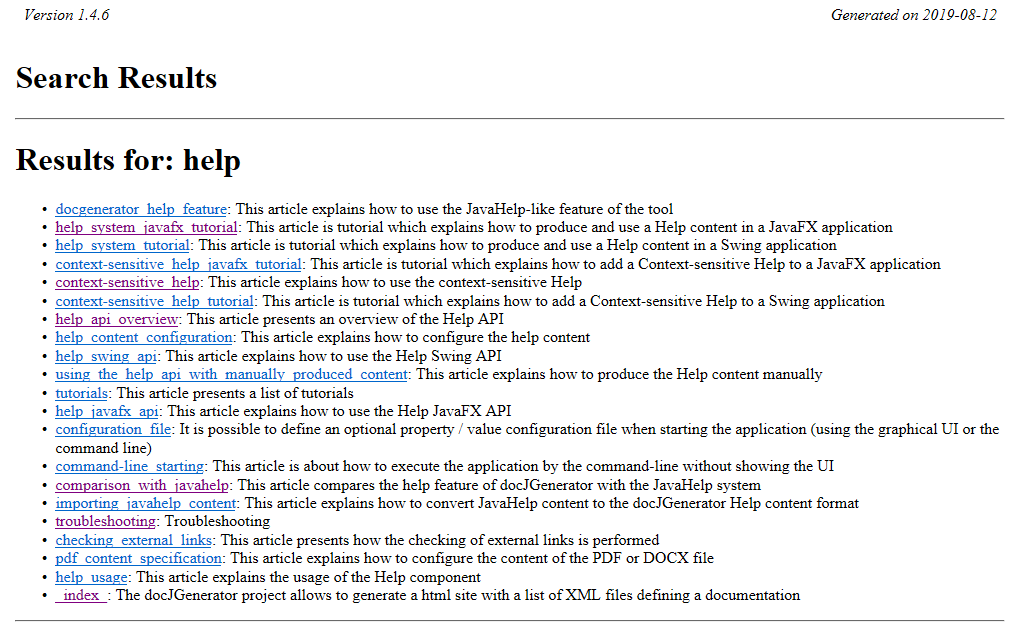
After clicking on "help" at the bottom of the popup window, the following page will appear:
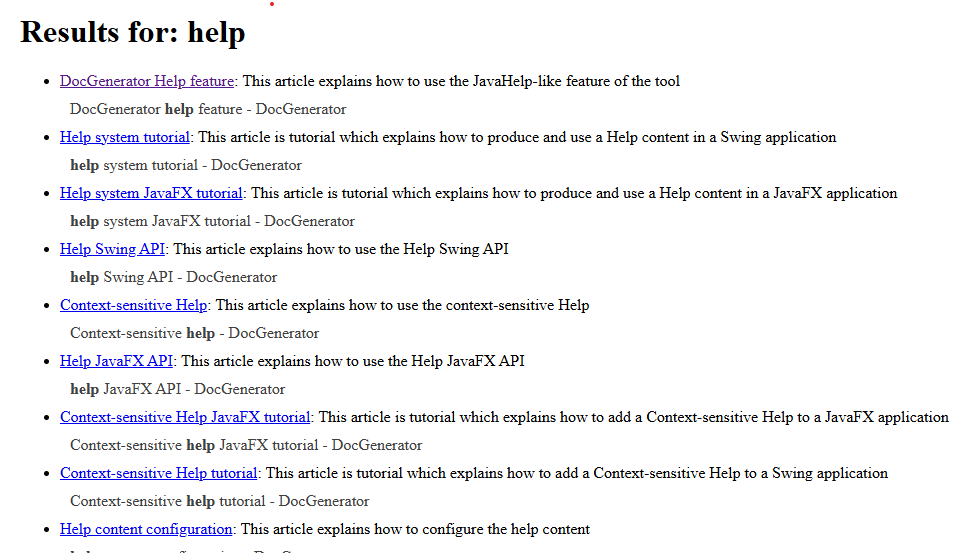
To be able to see the context of the search, you must:
The Full text search uses the elasticlunr Javascript library (or its associated Java conversion for the JavaHelp implementation) to implement the search.
Full text search options
Full text search compression level
By default, the JSON or Javascript file for the full text search is compressed to save space. It is possible to have a more readable file by setting the fullTextSearchCompressionLevel configuration property, or in the command-line.There are several values for the compression level:
- "false" or "0" or "minimum" or "no" does not compress the file. This format indent the file to make it more readable, but can be very large
- "true" or "1" or "normal" apply the normal compression to the file (this is the default value). This format does not indent the file and can be three times smaller than the uncompressed one
- "2" or "maximum" apply the maximum compression to the file. This format is much smaller (even than the one with the normal compression), but the json format for the serialized index is not compatible with the regular
elasticlunrJavaScript library. However, the version of the JavaScript library shipped with the generator is compatible with it, so the full-text search will still work if you use the shipped library as is
Note that for example, for this wiki:
- The size of the index for no compression is 3200 Ko
- The size of the index for the normal compression is 750 Ko
- The size of the index for the maximum compression is 310 Ko
Removing accents
It is possible to remove the accents for the full text search by setting the fullTextSearchRemoveAccents configuration property, or in the command-line. Accents are removed by default.For example here the accents will not be removed:
fullTextSearchRemoveAccents=false
Use the Metaphone algorithm
It is possible to use the Metaphone algorithm for the full text search by setting the fullTextSearchMetaphone configuration property, or in the command-line. The algorithm is not used by default.Metaphone is a phonetic algorithm for indexing words by their English pronunciation. It does a better job of matching words and names which sound similar.
For example here the metaphone algorithm will be used:
fullTextSearchMetaphone=true
Full text search results context
Main Article: Using the Full text search
By default, the Full text search result page will show the context of each result (see Using the Full text search). It is possible to configure if the context of the results will be shown with the fullTextSearchResultContext configuration property, or in the command-line.
For example, here there will be a full text search with the Full text search results context:
fullTextSearch=true
Here there will be a full text search without the Full text search results context:fullTextSearch=true fullTextSearchResultContext=false
Using the Full text search
Main Article: HTTP Server
The Full text search feature is available in the search box. Note that you will not see the context of the search if you open the wiki in the browser by double clicking on the
index.html page.For example:
After clicking on "help" at the bottom of the popup window, the following page will appear:
To be able to see the context of the search, you must:
- Double click on the
server.batconsole file (orserver.shon Linux or MacOS X) - Open the wiki on the browser by navigating to the
http://localhost:8080/address
Cross-origin resource sharing
The reason why you will not see the context of the search if you open the wiki in the browser by double clicking on theindex.html page is because of the Cross-origin resource sharing policy (CORS):- Getting the context of the search is performed by create a DOM object in the Search results page each page where the term has been found. It gets the resources for this other page in the context of the results page
- The computation of the context is done by Javascript on the Client browser on each of the page on the results page
- CORS does not allow a web page to access restricted resources on a domain name different from the domain that served the web page. By default local pages are considered as in another domain to avoid security problems. This leads to the javascript function which tries to get the DOM content of the page to fail because of this restriction
http://localhost:8080/ and are no more viewed as local files by the browser anymore. See also
- Search: This article is about the Search box which is shown on articles
- Full text Search architecture: This article explains the full text search architecture
- HTTP Server: This article explains the usage of the HTTP server
×
![]()
Categories: Search
